Reduce input lag, improve gaming performance, and enhance timing precision with this free, lightweight Windows utility
Timer Resolution is a free Windows tool that makes your computer more responsive. It works by changing how often Windows checks for updates and processes tasks. This simple change can make a big difference in gaming, reduce input lag, and make your whole system feel snappier.
By default, Windows updates every 10-25 milliseconds. That might sound fast, but in gaming and other time-sensitive tasks, it can cause small delays. Timer Resolution reduces this to just 1 millisecond, making everything feel much more responsive.
The best part? It's simple to use - just launch the program and click "Maximum" to get started. No complicated settings or technical knowledge required.
Powerful capabilities designed to enhance your Windows experience
Get 20-30% better frame times and eliminate micro-stutter in games. Your mouse and keyboard inputs will feel instant.
Experience consistent frame pacing and reduced stuttering. Perfect for competitive gaming where every millisecond counts.
Just double-click the program and press "Maximum" - that's it! No complicated setup or technical knowledge needed.
See your current timer resolution, minimum, and maximum values in real-time. Know exactly how your system is performing.
Runs quietly in the background using minimal resources. Completely free and open source with no ads or subscriptions.
No drivers, no permanent changes, no registry edits. Uses official Windows APIs and restores defaults when closed.
Get started with better system performance today - completely free
Download Latest VersionThink of Windows as checking a clock to see what needs to be done. By default, it checks every 10-25 milliseconds. Timer Resolution makes Windows check that clock more often - every 1 millisecond instead.
This means your mouse movements, keyboard presses, and game actions get processed faster. The result? Everything feels more responsive and smooth.
When you run Timer Resolution, you'll immediately feel the difference:
Timer Resolution comes with everything you need:
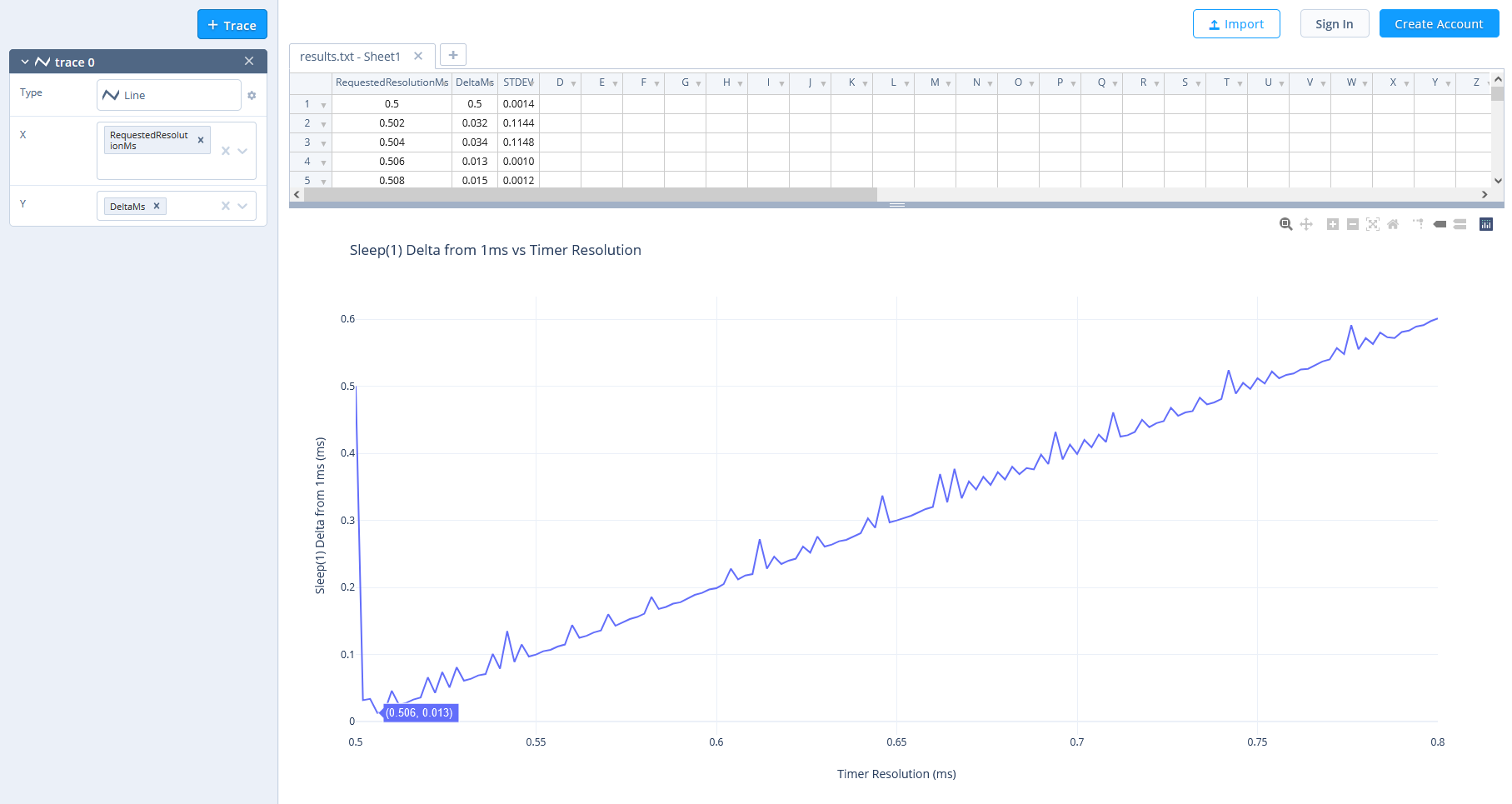
Real benchmark showing how Timer Resolution improves system precision
Timer Resolution uses the Windows NtSetTimerResolution API to request a higher timer frequency. This is a safe, official Windows function that many programs use. When you close Timer Resolution, Windows automatically returns to its default settings.
No drivers are installed, no system files are modified, and no permanent registry changes are made. It's completely safe and reversible.
Timer Resolution supports Windows XP, 7, 8, 10, and 11 - both 32-bit and 64-bit versions. No installation needed, just download and run.
Timer Resolution uses a tiny bit more power because Windows is checking things more often. For desktop computers, this is barely noticeable. Laptop users might see a small decrease in battery life, so consider running it only when gaming or when plugged in.
Timer Resolution helps anyone who wants better system performance, especially:
You can set Timer Resolution to run automatically when Windows starts using Task Scheduler. This way, you'll always have optimal performance without thinking about it.
SetTimerResolution.exe --resolution 5000 --no-console
This command sets the resolution to 0.5ms and runs hidden in the background.
Timer Resolution is a standalone program with no installation required. Just download, unzip, and run. It includes both the main timer tool and the measurement utility.
Based on the open-source project by valleyofdoom
Quick answers to common questions about Timer Resolution
It's super simple! Just download the program, extract the zip file, and double-click TimerResolution.exe. You'll see your current timer values. Click "Maximum" to set it to the highest resolution. That's it!
Yes, completely safe! Timer Resolution uses official Windows APIs and doesn't install drivers, modify system files, or make permanent changes. When you close the program, Windows automatically returns to normal settings.
Timer Resolution improves frame consistency rather than raw FPS. You'll get 20-30% better 1% and 0.1% frame time lows, which means smoother gameplay with less stuttering. It also reduces input lag, making your mouse and keyboard feel more responsive.
Yes! Timer Resolution works on all Windows versions including XP, 7, 8, 10, and 11 (both 32-bit and 64-bit). No compatibility issues.
Timer Resolution uses slightly more power because Windows checks things more frequently. On desktop computers, you won't notice any difference. Laptop users might see a small decrease in battery life, so consider running it only when gaming or when plugged into power.
Yes! You can create a scheduled task in Windows Task Scheduler to run Timer Resolution automatically when your PC starts. Use the --no-console flag to run it hidden in the background.
Yes, Timer Resolution needs to stay running to maintain the higher timer resolution. It uses very little system resources (less than 1MB of RAM), so it won't slow down your computer.
SetTimerResolution is the main program that boosts your timer. MeasureSleep is a testing tool that measures your system's timer precision so you can see the improvement. Most people only need SetTimerResolution.
The improvements are most noticeable in fast-paced games, especially competitive titles. You might not see a huge difference in slower games or general computer use. Try using the MeasureSleep tool to confirm that the timer resolution has actually changed.
The only downside is slightly increased power consumption. If you're on a laptop and concerned about battery life, just run it when you need maximum performance. Otherwise, there's no reason not to use it if you want better responsiveness.